
Audit alerts and fills on the price chart
Use the price chart after the comparison has produced matched or unmatched records. It places TradingView alert intent and broker-reported Alpaca fills on the same candles so you can see whether a problem is isolated or clustered in a particular market window.
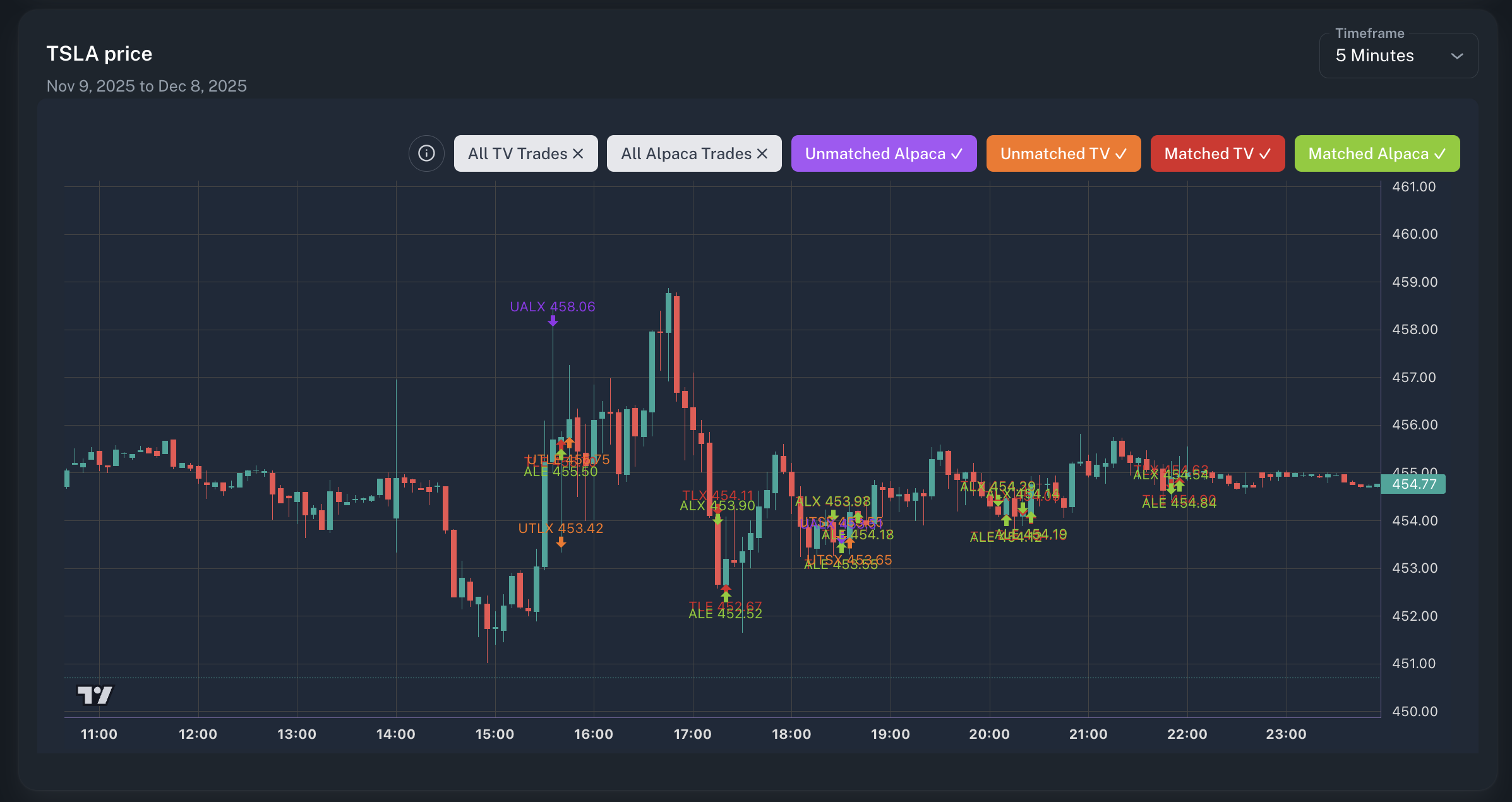
The filter buttons above the chart let you remove overlapping categories and inspect one source or match state at a time.
Read the marker groups
Section titled “Read the marker groups”The chart uses color and a short label prefix to distinguish source and match state. Arrow direction follows the underlying buy or sell side; the remaining letters identify long/short entry or exit.
| Filter | Color | Example labels | What it isolates |
|---|---|---|---|
| All TV Trades | Green | TLE, TLX, TSE, TSX | Every loaded TradingView alert represented on the chart |
| All Alpaca Trades | Blue | ALE, ALX, ASE, ASX | Every loaded Alpaca fill represented on the chart |
| Unmatched Alpaca | Purple | UALE, UALX, UASE, UASX | Broker-reported fills with no compatible TradingView alert under the current rules |
| Unmatched TV | Orange | UTLE, UTLX, UTSE, UTSX | TradingView alerts with no compatible Alpaca fill under the current rules |
| Matched TV | Red | TLE, TLX, TSE, TSX | The alert side of records included in a match |
| Matched Alpaca | Lime | ALE, ALX, ASE, ASX | The fill side of records included in a match |
LE means long entry, LX long exit, SE short entry, and SX short
exit. Select the information icon above the chart to open the same legend in
the app.
Run a visual audit
Section titled “Run a visual audit”-
Open Alerts vs Fills and select the same symbol, date range, alert source, and broker account used for the comparison.
-
Confirm the source counts and comparison settings before reading the chart. The chart reflects the currently loaded data and match result.
-
Turn off All TV Trades and All Alpaca Trades when their markers cover the matched and unmatched groups. Start with Unmatched TV or Unmatched Alpaca alone.
-
Enable Tooltips, then move the crosshair over a marker. Use the category, action, timestamp, and price to find the same record in the comparison grid.
-
Change Timeframe when you need more or less candle context. This changes the market-bar resolution; it does not replace the time and price tolerances used by the matcher.
-
Use Full screen when several markers overlap. Look for repetition around the same session boundary, volatile move, or direction, then verify each candidate pattern in the source rows.
-
Record the symbol, date range, source, timezone, timeframe, and matching tolerances with your conclusion. Save a snapshot only after that context is correct.
Chart controls
Section titled “Chart controls”| Control | Use |
|---|---|
| Information icon | Opens the marker-label legend |
| Category buttons | Shows or hides one source and match-state group; a check means visible |
| TZ: UTC / Local | Shows the timezone currently used for marker timestamps |
| Tooltips | Shows marker details when the crosshair reaches a candle containing markers |
| Timeframe | Reloads candles at another supported resolution |
| Full screen | Expands the chart while keeping the same data and filters |
| Single column / Two columns | Changes the surrounding page layout from the sticky page header |
Patterns worth checking
Section titled “Patterns worth checking”- One unmatched alert: compare its exact direction, timestamp, price, and quantity with nearby fill records.
- Several unmatched records at one boundary: check timezone handling, session scope, and whether the source windows truly overlap.
- Matched markers with visible price separation: inspect the row-level price difference and order context; the chart alone cannot determine the cause.
- Only one source visible: confirm that both the TradingView source and the Alpaca fill query returned records for the selected window.
- No candle context: the comparison can still be valid from its source records. Check the market-data connection, symbol entitlement, timeframe, and date range separately.